I remember the first time I got access to Claude in Excel at work. In the beginning I was 99% manual and 1% AI. It was helpful as a formula helper, but it wasn’t my first thought to use it for day-to-day tasks. Then slowly my usage began creeping up. Claude started editing, then analyzing, then building.
The Downtime Trap
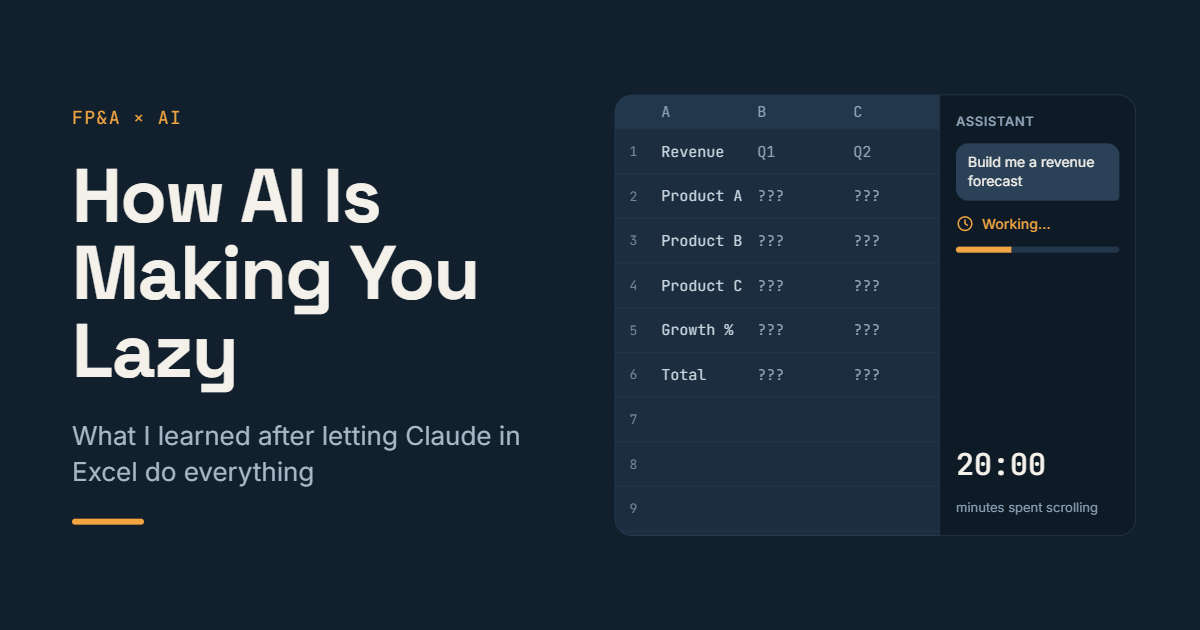
Before I knew it, I was using Claude for everything. I felt so productive typing every request into that chat box in the sidebar. The issue is that after the initial newlywed period wore off, I realized I was spending most of my time on my phone in between tasks, waiting for Claude to finish. When you run Claude in Excel, you can’t really task switch because 1.) you never really know how long it will need to run for a given task and 2.) there’s a good chance it will stop to ask you a question that requires your input. I’d look up from my phone and realize I hadn’t actually thought about anything in 20 minutes. That’s when it hit me that I’d gotten lazy.
When You Can’t Explain Your Own File
The other thing I noticed was that I had no idea what Claude had actually built. I’d have to ask AI to explain my own file to me. For some tasks this is perfectly fine, but for others, this is a non-starter. The minute someone asks about the underlying logic or questions an assumption and you don’t have an answer, you need to go running back to AI to ask it. This makes you look unprepared and as if you didn’t even really do the work (because AI did it!) and leads to people losing trust in your work.
Every FP&A person has gotten those simple questions before and knows if you don’t have the answers right away then you’ve lost their confidence. Where is this data pulling from? If I wanted to change or update XYZ, how would I do that in the file? Does the data tie out to our sources?
How to Use AI Without Becoming Lazy
Does this mean that AI in Excel is bad? Absolutely not! But it does mean having the right attitude towards it. I have two tips to help you leverage the best of AI without becoming over-reliant:
1. Know which tasks can be outsourced
Initial analyses. A first pass is low stakes, and it gives you more time to dig into the results instead of wrangling messy data.
Updates to models you already know. You built the logic, so you can spot when something is off.
Validating formulas and formatting. These are easy to verify and tedious to do by hand.
2. Keep your instructions focused
Instead of one big prompt like “build me a revenue forecast,” break it into steps: “pull the last 12 months of revenue by product into a new tab,” then “add a growth assumption row,” then “apply it to project the next 4 quarters.” AI does better when it has less room to get off track, and you avoid the worst-case scenario of waiting 20 minutes for the wrong output. It also keeps you the one driving the file, not AI.
Use these simple tips to responsibly embrace AI in Excel without losing the core of what makes you a valuable employee. In my next post, I will talk about tips for prepping your AI tools for success to save yourself hours of cleanup work.